Doesn’t WooCommerce scale? It runs on WordPress.
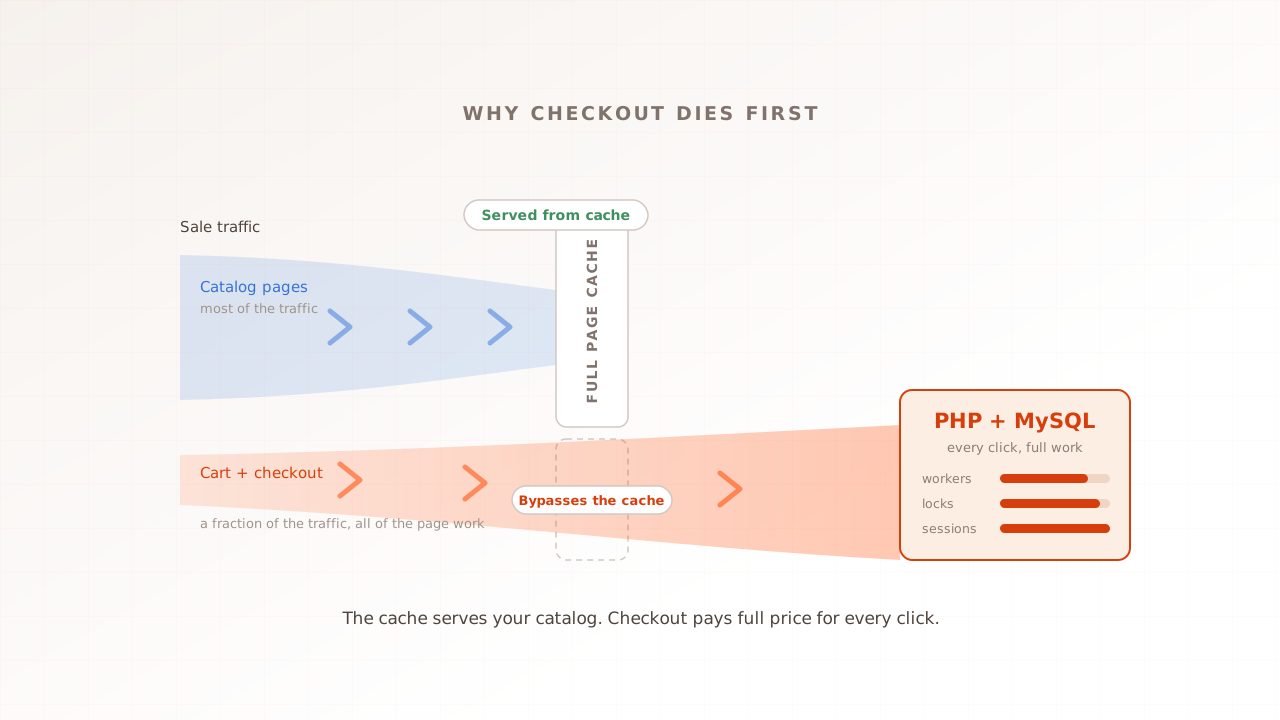
Yes, with the right hosting and caching, and the cached catalog scales cheaply. The trap is that the parts shoppers spend money on, the cart, the checkout, and the my-account pages, are non-cacheable by design. They run PHP and MySQL on every request while the homepage is served from a stored copy.
WooCommerce powers more stores than any other ecommerce platform. It rides on WordPress, which runs 41.5% of all websites, and it accounts for 48.6% of every ecommerce system W3Techs tracks, with more than 4.2 million live stores as of June 2026. Most of those are small and mid-sized merchants on shared or managed WordPress hosting, which is exactly the audience this guide is for. Shopify leads among the largest, highest-traffic sites; WooCommerce owns the long tail.
And it scales. WooCommerce’s own scaling guidance is blunt about it: “The sky is the limit. We’ve seen instances of shops with 100,000+ products listed, handling thousands of transactions per minute.” The four things that decide whether yours does are traffic, WooCommerce’s own code, the rest of your plugin and theme code, and your server hardware. Every one of those is a lever you control. WooCommerce is slow by default and fast when tuned, which is the whole opportunity: the store you assembled is yours to fix.
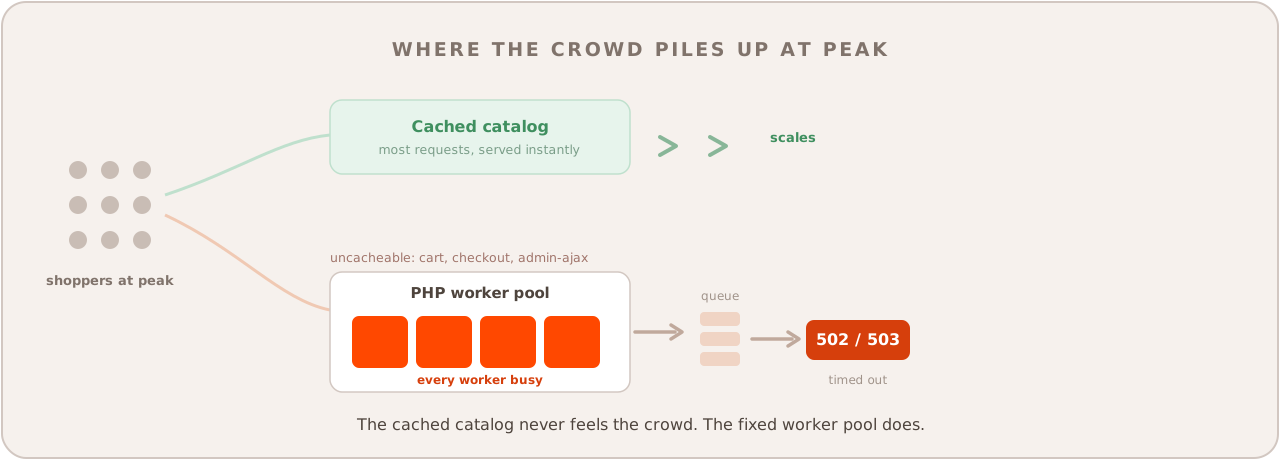
So where does it slow down? On the paths a cache cannot help. WooCommerce marks the cart, checkout, and my-account pages as non-cacheable by default, and supported caching plugins honor that exclusion, because those pages show one shopper their own cart and cannot be shared (WooCommerce docs). A printed menu board works for the whole room, but every order still goes to a kitchen that cooks it from scratch. Your catalog is the menu board. Checkout is the kitchen, and the kitchen has a fixed number of cooks. This is the same pattern that takes down Magento checkout under load, scaled down to a WordPress store, and seeing whether yours holds takes a real-browser performance test, not a check of the homepage.
What actually runs on every WooCommerce request?
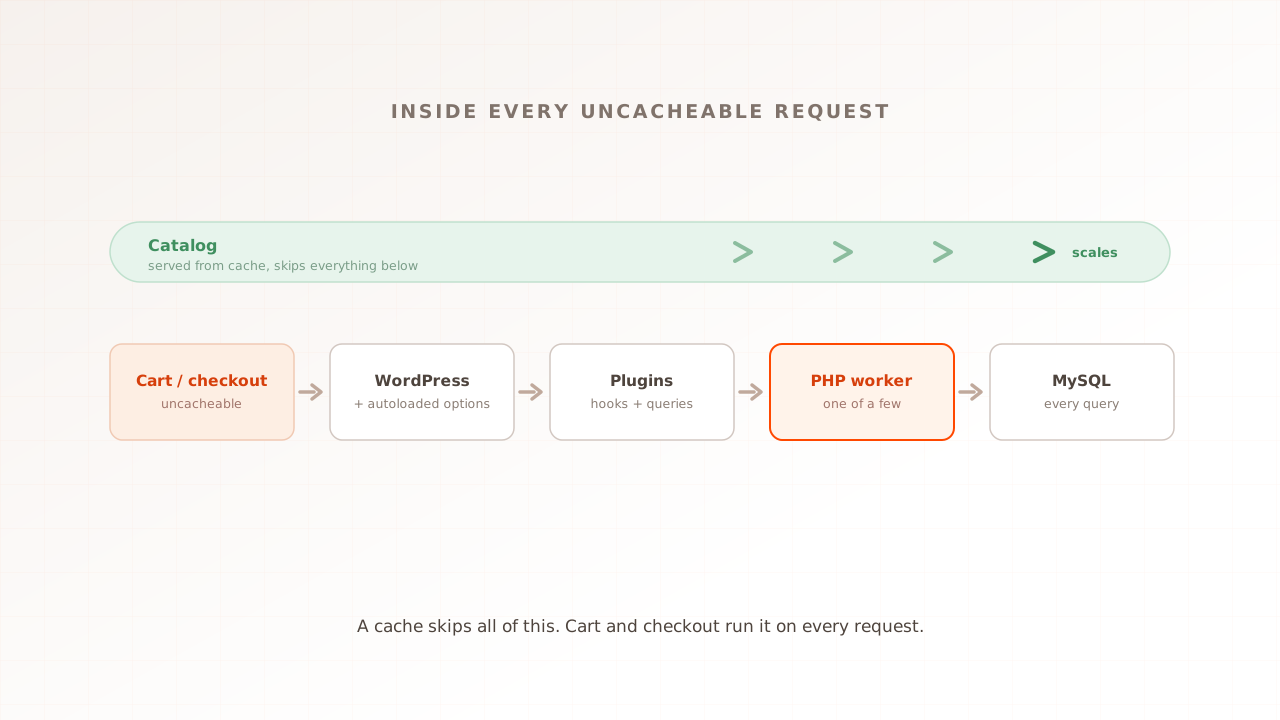
On the uncacheable paths, every request boots WordPress, reads the full set of autoloaded options, runs each active plugin’s hooks and queries, and builds the page in PHP. On budget hosting a handful of workers handle all of it, often with no object cache, so the database takes every uncached query directly. Here is what stacks up.
The cart-fragments AJAX call
WooCommerce refreshes the mini-cart with a script that, in its own words, “uses the WordPress admin-ajax API to update the cart without refreshing the page.” That call is uncached and handled by PHP. It used to be the textbook WooCommerce performance drag because, before WooCommerce 7.8, “the cart fragments script was enqueued on every page load … even if the mini-cart widget wasn’t present.” Since version 7.8 in June 2023 it loads by default only where the cart widget is actually rendered. The lesson is not that it is solved everywhere, because plenty of themes still render that widget on every page, and where the call fires it is origin work that multiplies with concurrency.
Autoloaded options in wp_options
WordPress keeps site settings in a table called wp_options, and every option flagged to autoload is read on each page request. Plugins add to it, and expired transients, temporary cached values, often linger there long after they are useful. WordPress is explicit about the cost: without a persistent object cache, “your web server must read those options from the database to handle every page view.” On a busy uncacheable path, a bloated options table is a tax paid on every single request.
Plugin sprawl
This is not about any one plugin. Each active plugin can add database queries, hook callbacks, and front-end scripts, and a store assembled from a dozen or more pays that cost on every request. WooCommerce names the rest of your plugin and theme code as one of the four things that decide whether you scale, and it is the one that grows quietly as a store ages. The fix is to measure which plugins cost the most, not to guess.
A small worker pool and no object cache
The ceiling is set by how many requests your server can run at once. PHP processes requests through a pool of workers, and budget shared or managed hosting often gives a site only a handful. When every worker is busy building an uncacheable checkout page, the next request waits, and past a point the server returns 502 or 503 errors. A persistent object cache (Redis or Memcached) would keep repeated queries in memory, but WordPress is clear that this depends on the host: “For your site to use persistent object caching, your hosting provider must offer you a particular type of server, a cache server.” Without one, every uncached query falls straight through to MySQL.
The front end shoppers actually feel
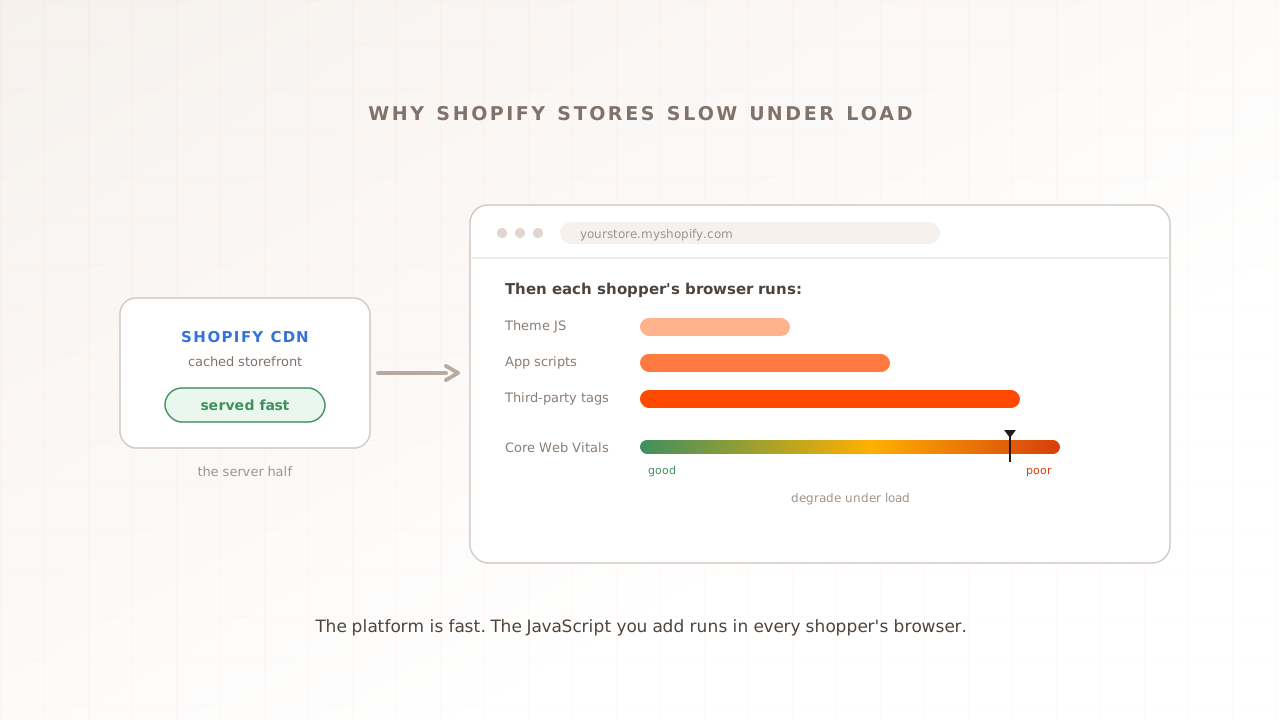
All of that is the server. The shopper also waits on the theme and plugin JavaScript that runs in their browser, plus any tracking tags, before the page is usable. This is where WooCommerce’s real-world numbers show the strain. Only 45% of WordPress sites pass all three Core Web Vitals on mobile, and the weakest of the three is loading: just 53% have a good Largest Contentful Paint, per the 2025 Web Almanac. The median page across all websites now ships 2,164 KB, including 646 KB of JavaScript, and a commerce store with a page builder and a dozen plugins tends to sit heavier. Those Vitals are measured in a browser, which is the first hint about why a server-only load test misses them. For how they move at concurrency, see Core Web Vitals at load.
Why does it only fall over under load?
Because the cheap path and the expensive path scale in opposite directions. The cached catalog barely notices a crowd. The uncacheable cart-and-checkout path lands on a fixed pool of PHP workers, and when more shoppers transact at once than there are workers to serve them, requests queue, response times climb, and the slowest ones time out as 502s and 503s.
A normal day hides this. Most visitors browse cached pages, a few buy, and the worker pool is never full. A sale changes both numbers at once: more visitors arrive, and a larger share of them head for the cart and checkout, the one place the cache cannot help. The catalog still flies while the kitchen falls behind. Third-party work makes it worse, because a checkout often calls out to a payment gateway or a shipping or tax service, and a worker waiting on a slow external response is a worker serving no one else. Your sale peak is their peak too. This is the Magento checkout pattern on a smaller stack: the platform differs, the bottleneck shape does not. The Magento-scale version of the rehearsal is covered under Magento load testing.
Why did your load test say everything was fine?
Because it probably tested the cache. Pointing virtual users at the homepage measures how fast a stored copy is served, a number no WordPress site struggles with. The uncached checkout, the admin-ajax calls, and the theme and plugin JavaScript only show up when the test logs in, adds to cart, and renders the page in a real browser.
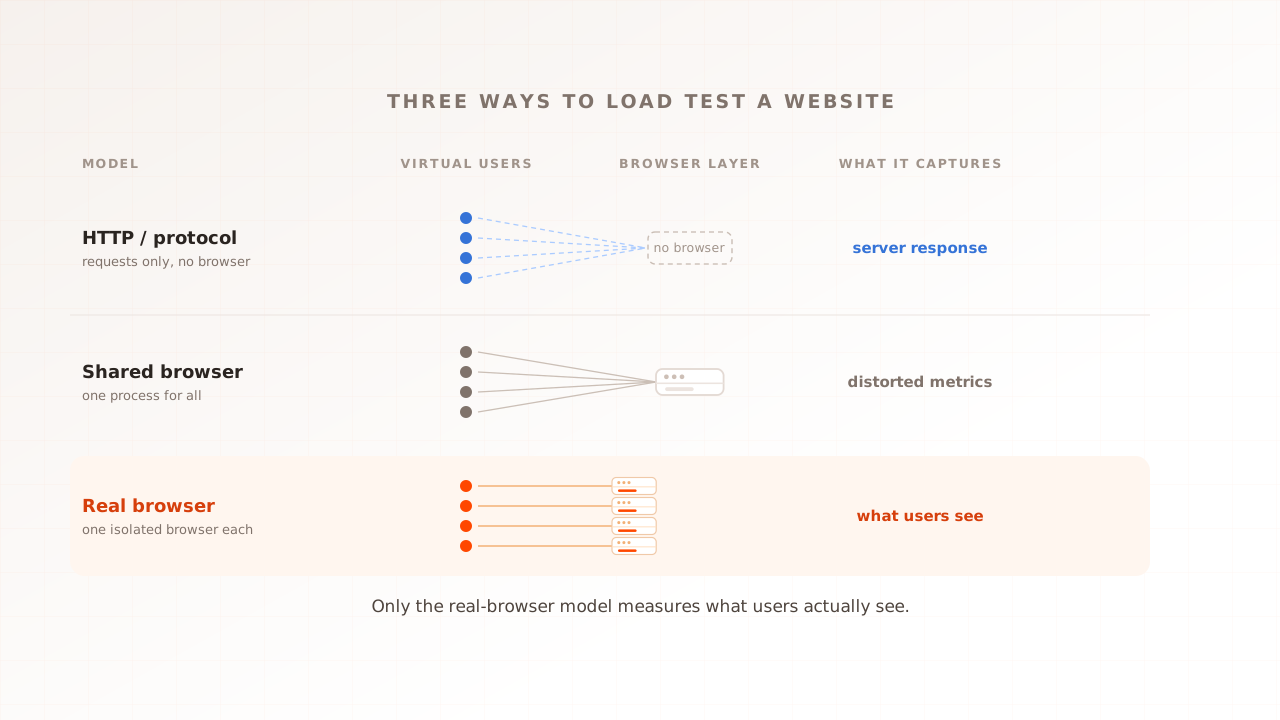
A virtual user is one simulated shopper the test drives. For the test to exercise the path that breaks, each one needs its own session and cart, and the test has to run the journey, not hammer a single URL. The choice of tool matters here too. Protocol tools like k6 and JMeter are genuinely the right instrument for API and protocol concurrency, where there is no browser to run and a real one would be wasted overhead, and k6 even ships a browser module. But in HTTP mode they send requests and read the response bytes without executing the page’s JavaScript or rendering it, so the theme and plugin cost, the Core Web Vitals, and the admin-ajax behavior a browser would trigger are outside what they measure. That is the gap between what the server returns and what users see, not what scripts pretend.
What an HTTP test sees versus what a real browser sees
The two answer different questions. An HTTP test answers “did the server respond,” which on a cached WooCommerce catalog is almost always yes. A real-browser test answers “did the page stay usable for the shopper at peak,” which is the question your revenue turns on. The table maps what each one records during one request.
| During one WooCommerce request | HTTP load test (HTTP mode) | Real-browser test |
|---|---|---|
| Server returns the cached catalog HTML | Measured, and fast | Measured, and fast |
| Uncached cart / checkout PHP path | Hit, if scripted | Hit, the way a shopper hits it |
| Theme and plugin JavaScript parse and execute | Not run | Measured |
| admin-ajax cart-fragment behavior | Not triggered as a browser does | Triggered and measured |
| Largest Contentful Paint and INP | Not produced | Captured per session |
| Evidence of why one session stalled | None | Session video, network log, console log |
To see the layer that breaks, the test has to run the page the way a shopper’s device runs it. That is real-browser load testing: every virtual user is a real browser.
How to load test your WooCommerce store (on staging)
Because WooCommerce is self-hosted, you can test the whole journey, including checkout, which is the opposite of a hosted platform like Shopify, where the checkout is sandboxed and off-limits. Do it against a staging copy that mirrors production, with payments in sandbox mode. The goal is one number: the concurrency at which checkout stops meeting your targets.
- Test a staging copy, and check your host’s terms first. Only load test infrastructure you own or have permission to test, and use a staging or production-replica environment, not the live store. Many managed hosts restrict it. Kinsta, for example, states plainly that “load testing is prohibited on the MyKinsta platform” and points to its terms. A test against a shared box also measures the neighbours you share it with, so a copy on infrastructure that matches production is the honest target.
- Script the full journey, not a URL. Product page, add to cart (which fires the fragments call), cart, checkout, with the payment gateway in sandbox. The journey is what shoppers do, and the journey is what breaks.
- Give every virtual user its own data. A unique session, cart, and account per user keeps caching and database contention close to a real crowd. Hundreds of users sharing one cart collapse onto a single row and flatter the result.
- Find the worker-pool ceiling on purpose. Ramp virtual users past your expected peak until error rate and p95 response time climb together. That crossover is your concurrency ceiling, and the method is the same as stress testing a website. A flash sale or product drop, where the load lands in minutes, is the sharper case covered in spike testing.
- Read the results per step, in a real browser. A p95 spike on checkout points at PHP and MySQL; Largest Contentful Paint and INP drifting upward point at theme and plugin JavaScript. Modern stores keep order data in dedicated tables (High-Performance Order Storage, the default since WooCommerce 8.2 in October 2023), which eases order-write contention, but cart and checkout still run uncached PHP on every request, so the path that breaks first is unchanged.
- Re-test after plugin and theme changes. Every added plugin, tag, or theme update moves the ceiling. The margin is worth real money: Google and Deloitte’s 2020 study Milliseconds Make Millions found a 0.1 second mobile speedup lifted retail conversions by 8.4%.
How Evaluat tests a WooCommerce store under load
Evaluat is a real-browser performance testing platform: every virtual user is a real, isolated browser that walks your store the way a shopper would, capturing Core Web Vitals under load along with session video, network logs, and console logs for each user. You build the journey once in a visual scenario editor, with no scripting.
Datasets feed each virtual user its own account, cart, and search terms; popup handlers dismiss the cookie and consent banners every storefront carries; and tests run from the region closest to your customers. When checkout gives way at peak, the report shows where. The per-URL view separates the catalog pages that held from the checkout step that did not, and the network log of any session shows which call stalled, a fragment refresh, a plugin’s admin-ajax handler, a payment redirect. Aggregate percentiles tell you something broke; they do not tell you who or why. A failure at peak isn’t a percentile. It’s a session. Open the session. Watch the moment it broke.
Two honest boundaries. Evaluat watches your store from the outside: it shows which request was slow and what the shopper experienced, but finding the slow query inside MySQL or the bloated autoload table still takes a server-side profiler like Query Monitor. And for raw protocol concurrency, thousands of API requests per second with no rendering, an HTTP tool like k6 or JMeter is the lighter, cheaper instrument. The real-browser model earns its cost on the JavaScript-heavy, uncacheable path this guide is about.
Test the store you assembled, not the platform underneath
The asymmetry is the lesson. WooCommerce gives you a catalog that caches cheaply and a checkout that pays full price for every click, and because the whole stack is yours, the ceiling is yours to find and raise. Stop reading “WooCommerce scales” as proof that your store will. Script the journey that takes the money, run it in a real browser on a staging copy at the load you expect, and find the concurrency where it stops holding, before a sale finds it for you.
Related commercial pages: ecommerce performance testing, checkout under load, and peak readiness.
Test in real browsers. Debug in real sessions. Book a demo.