Doesn’t Shopify scale automatically?
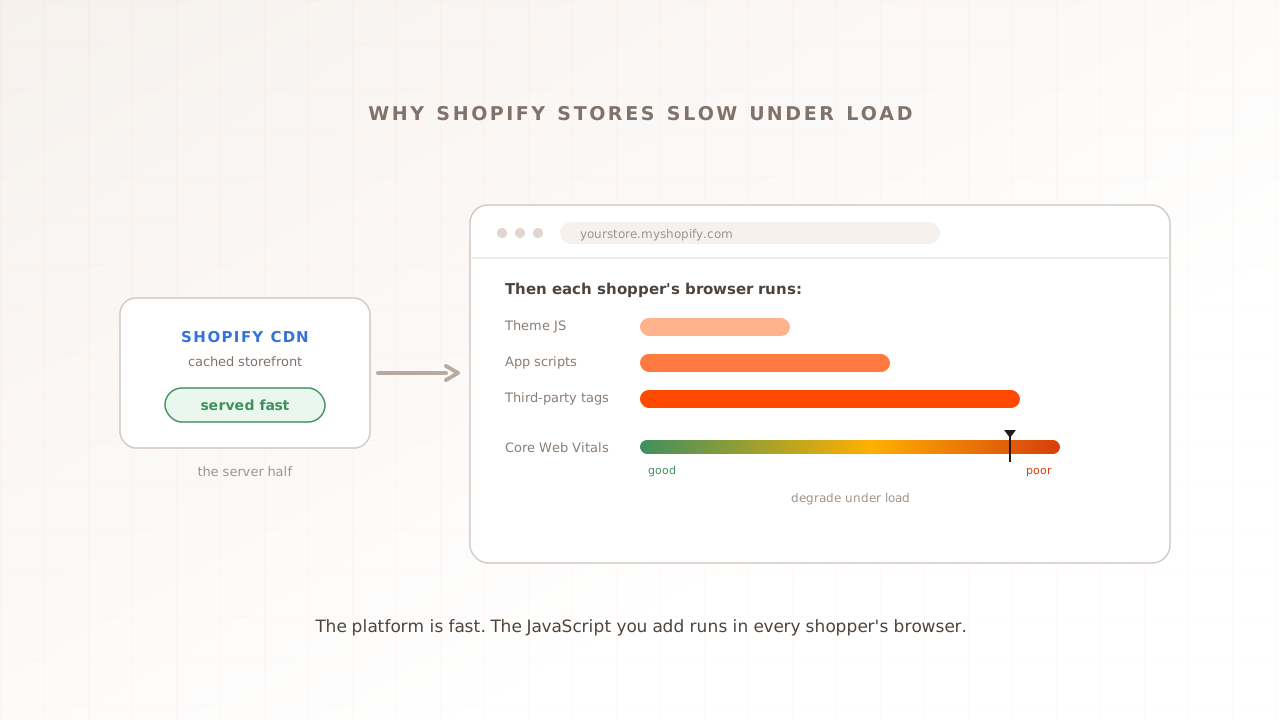
Mostly, yes, and that is the trap. Shopify serves your storefront from a global content delivery network with full-page caching, so the server half of the response stays fast at almost any traffic. What it cannot cache is the JavaScript your theme and apps run inside each shopper’s browser, and that half slows down when a crowd arrives.
A hosted platform runs the servers, the database, and the network for you, and Shopify’s scaling is real. It renders storefront pages on its own servers, stores the finished HTML in a cache, and serves it through a global CDN, which Shopify’s developer docs name as Cloudflare. A 2020 Shopify engineering write-up describes the mechanism: once its renderer builds a page, it stores the output and hands that cached copy to later visitors, so a cached collection page costs the origin almost nothing even under heavy traffic. The result shows up in the field. Across the latest versions of its themes, Shopify’s own data puts a median 87.6% of shops at good Core Web Vitals (Google’s three metrics for loading, responsiveness, and visual stability) for at least 75% of their real users, as of June 2026. For contrast, only 48% of mobile sites across the web clear the same bar, according to the 2025 Web Almanac. On average, Shopify stores are fast.
So where does the slowdown come from? The other half of the page load. Every response Shopify sends still has to be turned into pixels by the shopper’s own browser, which downloads and runs the theme’s JavaScript, each app’s scripts, and every third-party tag before the page is usable. That work runs on the visitor’s device, not on Shopify’s servers, and no cache can do it for them. The cart and account pages sharpen the split, because they are specific to one shopper and are not shared from the full-page cache the way a product listing is.
It is like flat-pack furniture. The warehouse ships the box in minutes, but every customer still assembles it at home, and the more parts you add, the longer each assembly takes. Warehouse speed never changes that. Shopify’s 87.6% is a rolling field average, not a forecast for your store at peak. A controlled e-commerce performance test can rehearse your apps and journeys at selected conditions, while field data remains the source for the full spread of customer devices.
What actually runs in the browser on a Shopify store?
Three layers of JavaScript stack up on a typical storefront: the theme’s own scripts, the apps a merchant installs, and the third-party tags like analytics, reviews, and chat. Each layer is downloaded, parsed, compiled, and executed on the shopper’s device, and each can call a server that Shopify does not control and cannot cache.
Start with the weight. The median mobile page across the web now ships 2,164 KB in total and 646 KB of JavaScript, per the 2025 Web Almanac, and commerce pages tend to sit heavier than the median because they carry more of the third layer. (Liquid, Shopify’s templating language, renders on the server, so it is not the client-side cost. The cost is the JavaScript the theme and its apps ship.)
Theme JavaScript
The theme is the store’s front end, and its scripts run the cart drawer, the product gallery, search, the variant picker, and animation. A well-built theme keeps this lean, but customizations accumulate over time: a slider here, a currency converter there, a countdown timer for the next sale, each adding code the browser has to run on every page.
Apps and the scripts they inject
Every app can add its own scripts to the storefront, and a typical store runs around half a dozen apps by Shopify’s own reckoning, with heavily customized stores running many times that. Each app is more main-thread work and, just as important, an independent backend the script calls out to. This is a structural cost, not a verdict on any one app: more apps means more code to execute and more separate services that can fail or slow on their own.
Third-party tags
Analytics, consent banners, A/B testing, personalization, and chat widgets load from other companies’ servers and run in the shopper’s browser. They are nearly universal: more than nine in ten pages use at least one third party, and scripts are the largest single category of third-party requests. Because these tags only execute inside a browser, they are precisely the part of the page that a test without a browser never sees.
Why does a Shopify store only slow down under load?
Because two costs compound at peak, and neither one is the server. The browser render tax is paid in full by every visitor on their own device and never amortizes, so peak simply means the most people paying it at once. And the app and tag servers that JavaScript depends on reach their own peak at the same moment, so they slow exactly when your traffic does.
The render tax is paid per device, and it never amortizes
Server caching is powerful because it builds a page once and serves it to many. Client-side execution is the opposite: every visitor’s browser parses and runs the same JavaScript from scratch, on its own processor, with no sharing between them. A weak phone feels this most, and most shoppers are on phones. The 2025 Web Almanac measured the median mobile page spending 1,916 milliseconds in total blocking time, the stretch where the main thread is too busy to react to a tap, against just 92 milliseconds on desktop, more than twenty times as much.
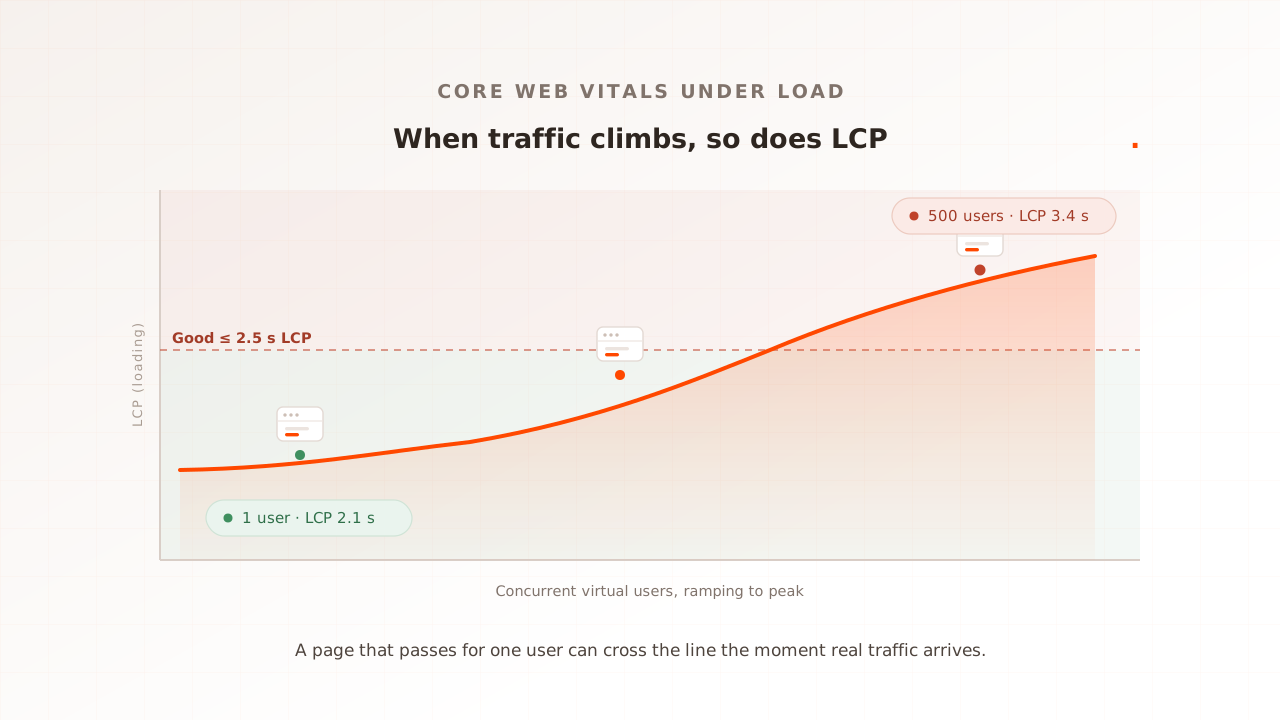
Here is the part that is easy to state wrong. Your shopper’s phone does not get slower because other people’s phones are busy; each device is independent. What changes at peak is how many devices are doing this at once, and which ones. The older phones on slower networks, your worst sessions, are present in their largest numbers exactly when you are busiest, so the aggregate experience is at its worst when it matters most. The render tax did not rise. The number of people paying it did.
The services your scripts depend on slow down exactly when you do
The second cost is genuinely load-coupled. The app backends and third-party tag servers your scripts call serve many sites at once, often thousands, and your sale peak is their peak too. When one of them slows or times out, the shopper’s browser sits waiting, long tasks pile up on the main thread, and the page stalls. A long task is any main-thread task over 50 milliseconds, and a run of them is measured directly as poor Interaction to Next Paint (INP). Late or render-blocking scripts hit Largest Contentful Paint (LCP) instead, and reflowing content shifts Cumulative Layout Shift (CLS). All of it happens while Shopify’s cached HTML still came back fast. For the metric-by-metric detail, see how to improve LCP and Interaction to Next Paint, explained.
Why doesn’t an HTTP load test catch this?
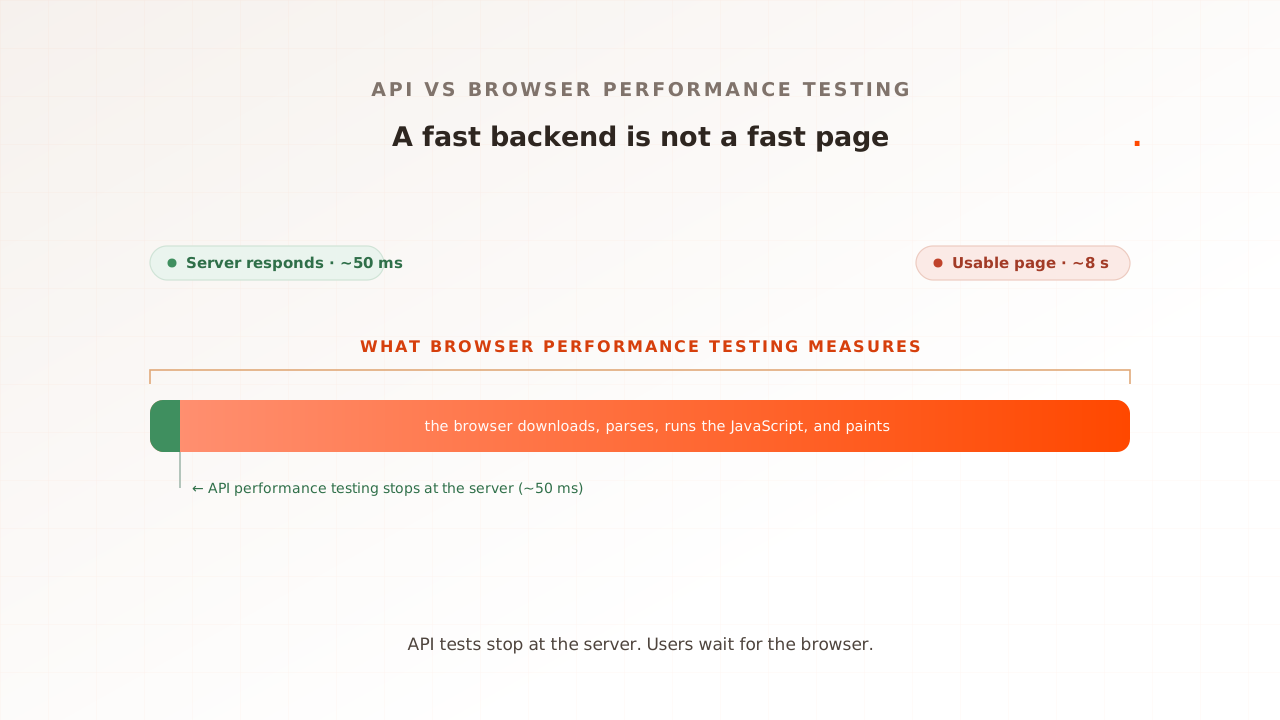
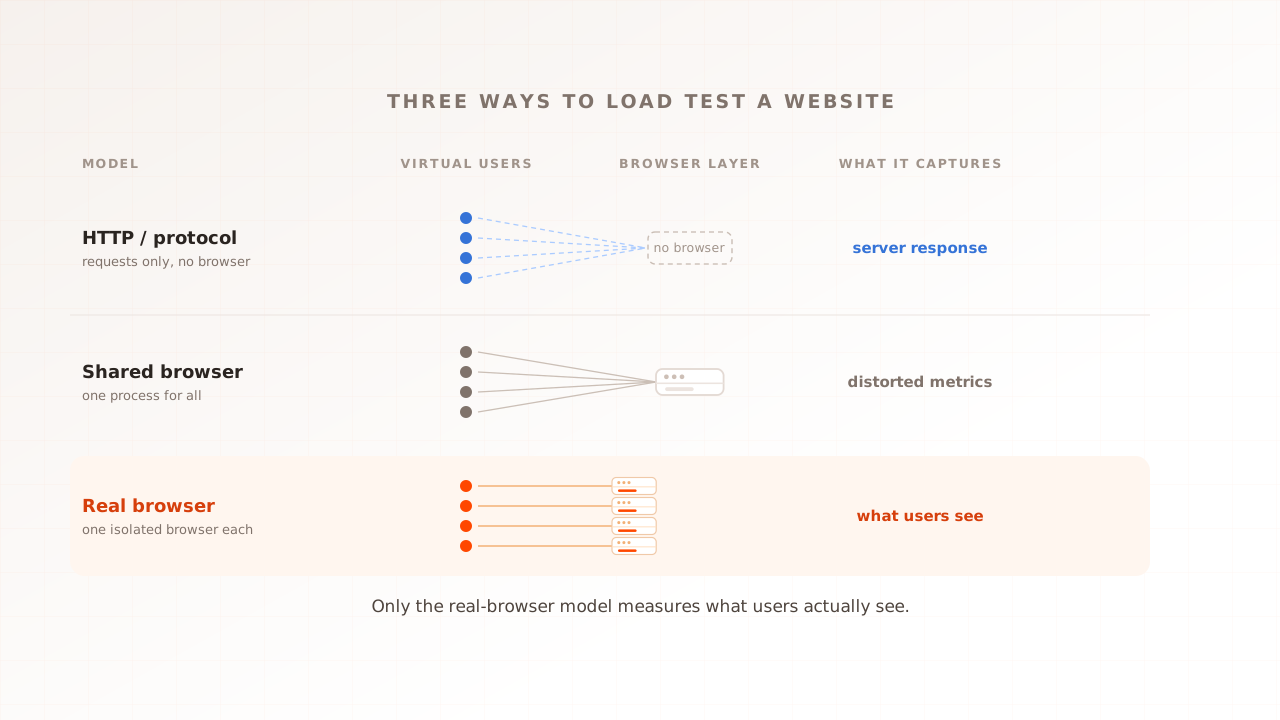
Because an HTTP load test never opens a browser. In HTTP mode, a protocol tool sends requests, reads the response bytes and status codes, and paces them to mimic users. It is fast, cheap, and accurate for what it measures, but it does not parse HTML, run JavaScript, load third-party tags, or paint a page. So it sees Shopify’s quick cached response and a 200 status, and reports that the store is healthy.
That is a property of the model, not a fault in the tools. Protocol tools like k6 and JMeter are genuinely the right instrument for API and protocol concurrency, where there is no browser to run and a real one would be wasted overhead. Some of them now reach further: k6 ships a browser module that drives real Chromium and reports Core Web Vitals, which is a different mode from its HTTP core. But the default HTTP load test, the one most teams run first, measures the server’s half of the page and stops where the browser’s half begins.
That gap is wide, and not only on Shopify. In a 2025 Catchpoint benchmark of SaaS websites, one site’s server answered in 52 milliseconds while its page took 8.4 seconds to finish loading. An HTTP load test pointed at that site would have reported 52 milliseconds and a clean pass. The user waited eight seconds. That is the distance between what the server returns and what users see, not what scripts pretend.
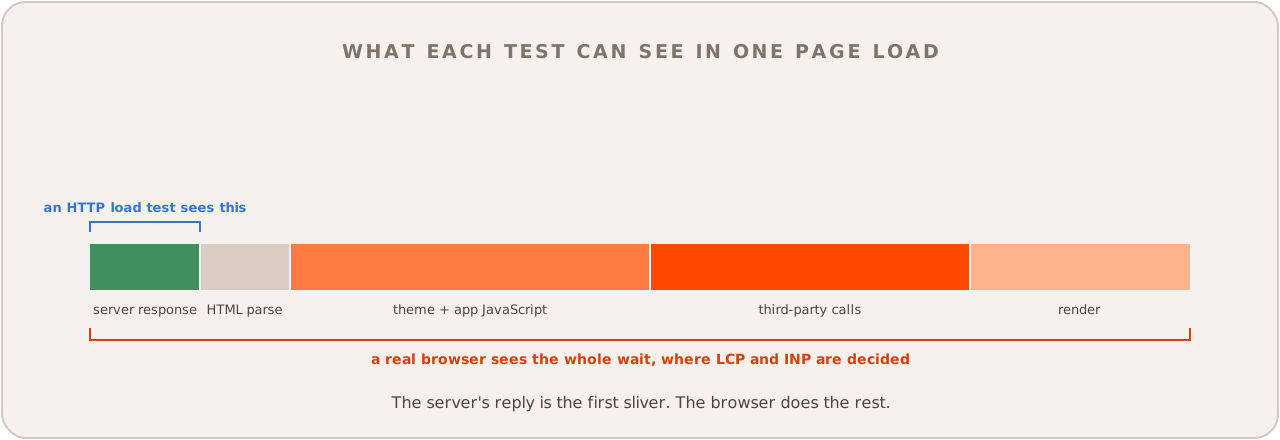
What an HTTP test sees versus what a real browser sees
The two tests answer two different questions about two different layers. An HTTP test answers “did the server respond quickly,” which on a cached Shopify storefront is almost always yes. A real-browser test answers “did the page stay fast for the shopper at peak,” which is the question your revenue actually turns on. The table maps what each one can and cannot record during a single Shopify page load.
| What happens during a Shopify page load | HTTP load test (HTTP mode) | Real-browser test |
|---|---|---|
| Server sends the cached HTML | Measured, and fast | Measured, and fast |
| Theme and app JavaScript parse and execute | Not run | Measured |
| App and third-party servers respond under load | Not called | Measured |
| Largest Contentful Paint | Not produced | Captured per session |
| Interaction to Next Paint | Not produced | Captured per session |
| Cumulative Layout Shift | Not produced | Captured per session |
| Evidence of why one session was slow | None | Session video, network log, console log |
The lesson is not that HTTP testing is wrong. It is that it measures a layer that rarely breaks on Shopify, and is blind to the layer that does. To see the layer that breaks, the test has to run the page the way a shopper’s device runs it. That is real-browser load testing: every virtual user is a real browser.
How to load test a Shopify storefront safely
Test the storefront experience, in a real browser, against an environment you control. Walk the journey a shopper takes, from collection to product to cart, with the apps and theme configured the way production is, and watch the metrics climb as concurrency rises. The goal is to find the load at which the page stops feeling fast, before a sale finds it for you. A flash sale or a product drop is the hardest version of this, because the load lands in minutes rather than hours; that sharp case is spike testing.
- Test what you control: the storefront and cart, not checkout. Shopify hosts checkout itself. Since it retired checkout.liquid for the checkout steps in 2024, checkout customizations run as sandboxed extensions in a web worker with no access to the page’s DOM, so you cannot weigh checkout down with arbitrary scripts the way you can a theme. The storefront and cart, the part you assemble, are where the performance risk and the test belong.
- Run it in a real browser. Only a browser executes the theme, app, and third-party JavaScript that decides felt speed. A protocol run against the same store measures the cache, not the experience.
- Test a development store or staging theme, and check the terms first. Drive load at an environment you own, not your live shop. Shopify’s public terms do not mention load testing, but they do prohibit automated access and working around technical limits, and stores sit behind bot mitigation, so heavy automated traffic at production can be blocked or breach the terms. Review Shopify’s terms and your third-party providers’ terms before you start.
- Give every virtual user its own data. A virtual user is one simulated shopper the test drives, and each needs a unique cart and session to keep caching and app behavior close to a real crowd. Hundreds of users sharing one cart measure a scenario that cannot happen in production.
- Watch Core Web Vitals at load, per URL and per session. Core Web Vitals at load can move before any error appears, so read the Vitals and error rate together. Run from a region chosen to represent a key market, and read the slowest sessions rather than the average. For the revenue path itself, use a checkout performance testing scenario with unique carts and test data.
How Evaluat tests a Shopify storefront under load
Evaluat is a real-browser performance testing platform: every virtual user is a real, isolated browser that walks your storefront the way a shopper would, capturing Core Web Vitals under load along with session video, network logs, and console logs for each user. You build the journey once in a visual scenario editor, with no scripting; Datasets feed each virtual user its own cart and search terms; popup handlers dismiss the cookie and consent banners every storefront carries. Tests run from the region closest to your customers.
When the page slows at peak, the report shows where. The per-URL view separates the collection pages that held from the product or cart step that did not, and the network log of any session shows which call stalled, an app’s backend, a tag server, a personalization request. Aggregate percentiles tell you something broke; they do not tell you who or why. A failure at peak isn’t a percentile. It’s a session. Open the session. Watch the moment it broke.
Two honest boundaries. Evaluat watches your store from the outside: it shows which request was slow and what the controlled browser experienced, but tracing that slowness inside a third-party vendor’s backend still takes that vendor’s own monitoring. And for raw protocol concurrency with no rendering, an HTTP tool is the lighter instrument. The same divide on a self-hosted platform is covered in why Magento checkout dies first under load and load testing a Hyvä storefront.
Test the store you assembled, not the platform underneath
The asymmetry is the lesson. Shopify gives you a platform that scales and a set of themes that, on their own, are fast. What it cannot give you is a guarantee about the store you built on top, with its apps, its tags, and its customizations, at the load you are about to put it under. That store lives in your shoppers’ browsers, and the only way to see it is to test it there. Stop reading “Shopify scales” as proof that your store is fast, and measure the journey that carries your revenue, in a real browser, at the load you expect.
Test in real browsers. Debug in real sessions. Book a demo.